Review
The Review page lists every change the last scan proposes, in five groups. Nothing changes in iTunes until you apply.
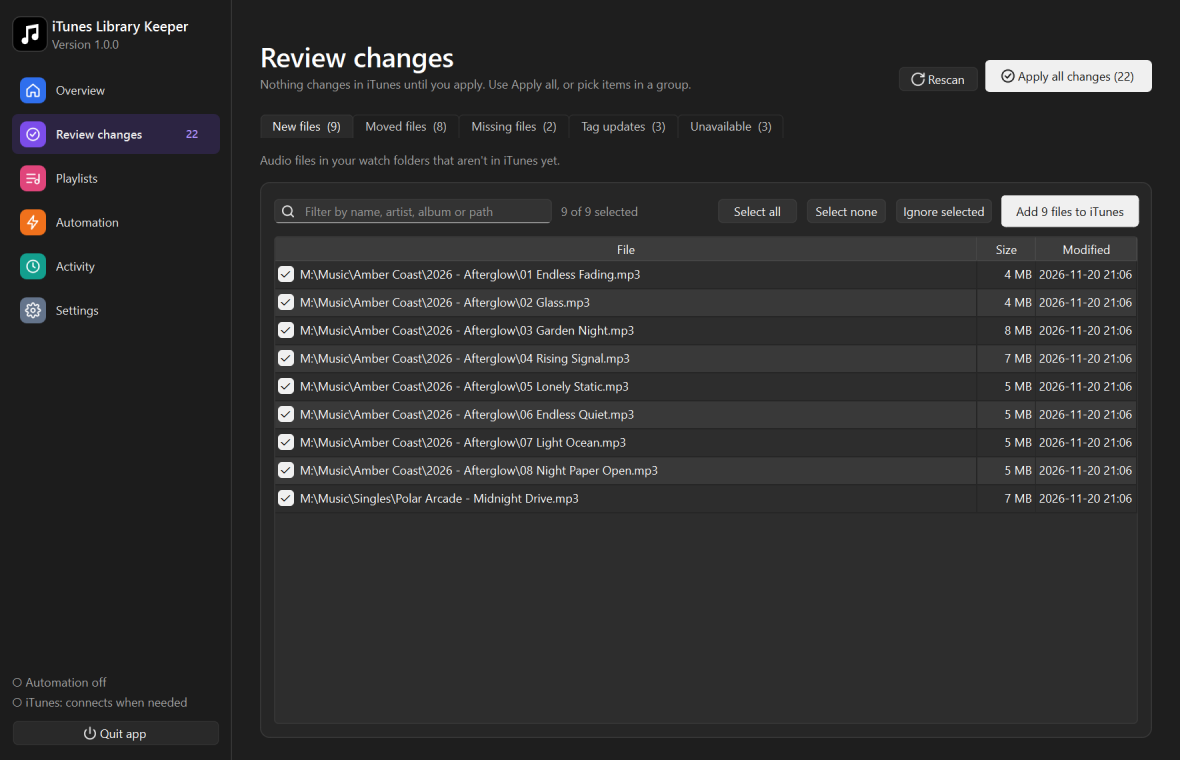
- The five groups
- Working with a group
- Moved files
- Missing files
- Ignoring files
- Apply all changes
- After applying
The five groups
| Group | What it means | Apply does |
|---|---|---|
| New files | Audio files in your watch folders that aren’t in iTunes yet | Adds them to iTunes |
| Moved files | Tracks whose file moved or was renamed, with the new location found | Relinks the track to the new file |
| Missing files | Tracks whose file is gone and couldn’t be found in your watch folders | Removes the entries from iTunes |
| Tag updates | Files edited outside iTunes (for example in a tag editor) since iTunes last read them | Makes iTunes re-read the tags |
| Unavailable | Tracks on a drive or network share that isn’t connected | Nothing. They’re left alone |
Working with a group
- Tick the rows you want, or use Select all / Select none.
- Type in the filter box to find rows by name, artist, album or path.
- Click the button at the bottom, for example Relink 12 tracks, to apply the ticked rows.
- Right-click rows to tick or untick them, Open containing folder, or Copy path.
Applied items disappear from the list straight away, without a new scan.
Moved files
A missing track is matched to an untracked file in your watch folders:
| Match | Confidence | Shown as |
|---|---|---|
| Same file name and size | High | Same file name and size |
| Same size and file type, different name (a renamed file) | Medium | check before relinking |
High-confidence matches are ticked for you. If you tick medium ones, the app asks you to make sure they’re the right files before relinking.
A match is only used when exactly one file fits. If several identical files fit, the app doesn’t guess. The track goes to Missing files with its candidates listed. Double-click it (or right-click › Relink to one of the identical files…) and pick the right file.
Relinking keeps everything: rating, play count, date added and playlist membership. The track is changed in place, not removed and re-added, and iTunes re-reads its tags from the new file.
Missing files
Removing an entry deletes it from iTunes only, which also takes it out of your playlists. The app asks you to confirm first. Your files aren’t touched. Before anything is removed, the details of those entries are saved to a JSON file in the app’s data folder. See Activity & safety.
Check the Unavailable group and your watch folders before removing many tracks. A file that moved outside your watch folders also shows as missing.
Ignoring files
Select new files and click Ignore selected to never offer them again. This is handy for voice memos, samples or files you keep in iTunes’ media folder on purpose. You can clear the ignore list in Settings.
Apply all changes
Apply all changes on the Overview or Review page opens a dialog with one checkbox per group. Everything the last scan found is applied, except groups you untick. Missing tracks with several possible files are skipped; pick their files on the Missing tab.
After applying
- iTunes’ open view is refreshed automatically.
- The app remembers its own changes until iTunes rewrites its XML file, so the next scan doesn’t show them again.
- Each run is recorded on the Activity page.
Note on iTunes’ media folder
If iTunes is set to Copy files to iTunes Media folder when adding to library, it adds a copy rather than your original file. The app notices and puts the originals on the ignore list, so they aren’t offered again.